Templates
A template is a whole page under a name: every view, the site menu, each block with its settings, and the colours. Picking one is how a page starts.
The gallery opens from Templates, in the editor's rail. The rest of that rail is The editor.
Two things called a template
- Picked in the editor's gallery, on the page you are composing.
- A whole composition — blocks, views, colours — copied onto this page.
- The copy is yours from that moment: you edit it, and it stops answering to the template.
- Reaches players when you publish.
- Assigned to a page, not composed.
- The platform ships one, and no screen offers the choice.
- It draws the page only while nothing has been published from the editor.
- Nothing you do in the editor changes it.
What a domain serves is decided by publishing and by nothing else. Publish a composition and that composition is the page. Publish none and the render template draws it, with the content it ships. There is no second switch to turn on — see Versions and publishing.
Picking one erases the page
- 1Open TemplatesOne card per starting point, each rendered.
- 2Use this templateThe card's button. It acts at once.
- 3The draft is replacedWhat was composed here is gone.
- 4PublishUntil you do, players still see the last published version.
The gallery says it above the grid: Picking a template ERASES what is built on this page. There is no confirmation dialog.
What it replaces is the draft. The live site does not change: players keep seeing the last version you published, and that version stays in the history. What is lost is the unpublished work that was on the canvas.
A dialog naming the template covers the wait while the new draft is written. Closing it cancels nothing. If the write fails you get a red message and keep the old composition — read it, because the page under it will look exactly as it did, which is the same thing a silent failure looks like.
The colours come with the template. Default template brings its own look, and Themes is where you change it afterwards.
What the platform ships
One card: Default template. Every other card in the gallery is a saved template.
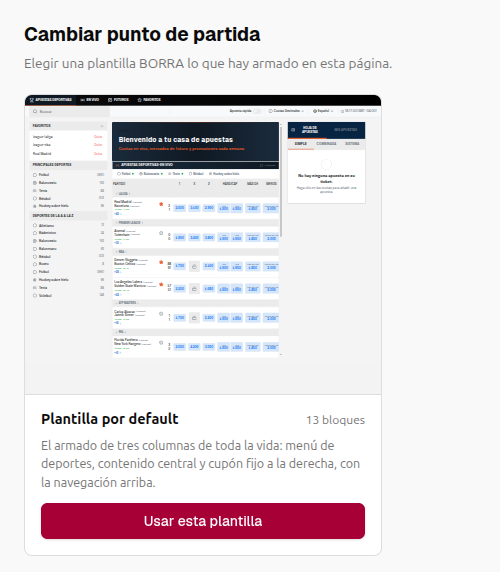
It starts with the navigation bar and the secondary bar across the top, then three columns: a sports menu on the left, drawn on desktop only; the centre with a cover banner, the live section, top futures and the upcoming-matches board; the bet slip fixed on the right. It brings its own colours.
It ships without a legal strip. A page that needs a legal line takes an Announcement strip block, under Marketing, or a Legal text block, under Content — written and placed where you want it.
Blank canvas, Home page, Showcase, Promotions and Live are not offered and have no cards. A page already composed from one keeps drawing it and needs nothing done to it.
A page nobody has composed yet opens on a blank canvas: the two bars and an empty centre. That is where you start from, not something you pick.
Saving your own
More → Save as a template, in the editor. One field, the name, required.
The whole page is stored: every view, the site menu, each block with its settings, and the colours sealed in. There is no description field, so a saved template carries none.
Saving a template does not save the page and does not publish it. It is a copy taken aside.
How far it reaches
A saved template belongs to the operator of whoever saved it, never to the page it was saved from. Every page of that operator offers it, and it is in every colleague's gallery too. That is what it is for: compose one white label, then start the next four from it.
Saved by platform staff it belongs to no operator, and then it appears in every operator's gallery. So from the platform account save only what every client should see: a bespoke composition taken from one client's page lands in all the others' galleries.
Saving over one
A name that already exists is a save over that template, and you are asked first. Confirming stores the previous version with the template — the last ten are kept — but no screen lists them and nothing restores one, so treat the save as final rather than as an undo.
Update with the canvas, on a saved card, is the same act from the gallery: it asks, then makes what is on the canvas that template's next version under its existing name.
Who can change a saved template
| The card | Use this template | Update with the canvas | Delete |
|---|---|---|---|
| The platform's own | yes | — | — |
| One your operator saved | yes | yes | yes |
| Another operator's, seen by platform staff | yes | — | yes |
Platform staff administer every saved template and author only their own, so on somebody else's row they can delete but not save over it. Default template carries neither button: deleting it would mean deleting the product.
Deleting is for the whole team, on every page of that operator, and cannot be undone. Pages already built from it do not change. The document is copied the moment a template is picked, so a page owns its own from that day and never reads the template again.
The Templates catalogue
Content → Templates, in the back-office sidebar, lists the same cards outside any page: From the platform on one panel, Saved from the editor on the other, with one search across both.
It offers no Use this template. Picking a starting point needs a page open in the editor, and this screen is not standing on one. What it is for is looking at the catalogue, and deleting a saved template — one your own operator saved, and for platform staff any of them, exactly as in the table above.
It does not need a working page chosen. It needs permission to edit operators and pages — the same permission the editor needs. See Back-office basics.
Reading a card
Every card is the template really rendered, at desktop width and scaled down, not a picture — so it always shows the template as it is today.
Fixtures and odds on a card are sample data. An empty board means no sample data reached that block, not a broken template.
In the editor's gallery, a template with colours of its own wears them, and one without is painted in this page's brand colours — which is what it will actually become when you pick it. On the Content → Templates catalogue there is no page to read a brand from, so a template without colours of its own is drawn in the platform's factory palette instead. Changing a colour in Themes repaints no card.
A template whose document cannot be built keeps its card — so you can say which one failed — with an empty window and, where the button would be, Cannot be used: this template could not be built. It cannot be picked. Report the name.
Next: Blocks and sections — the pieces a template offers you.